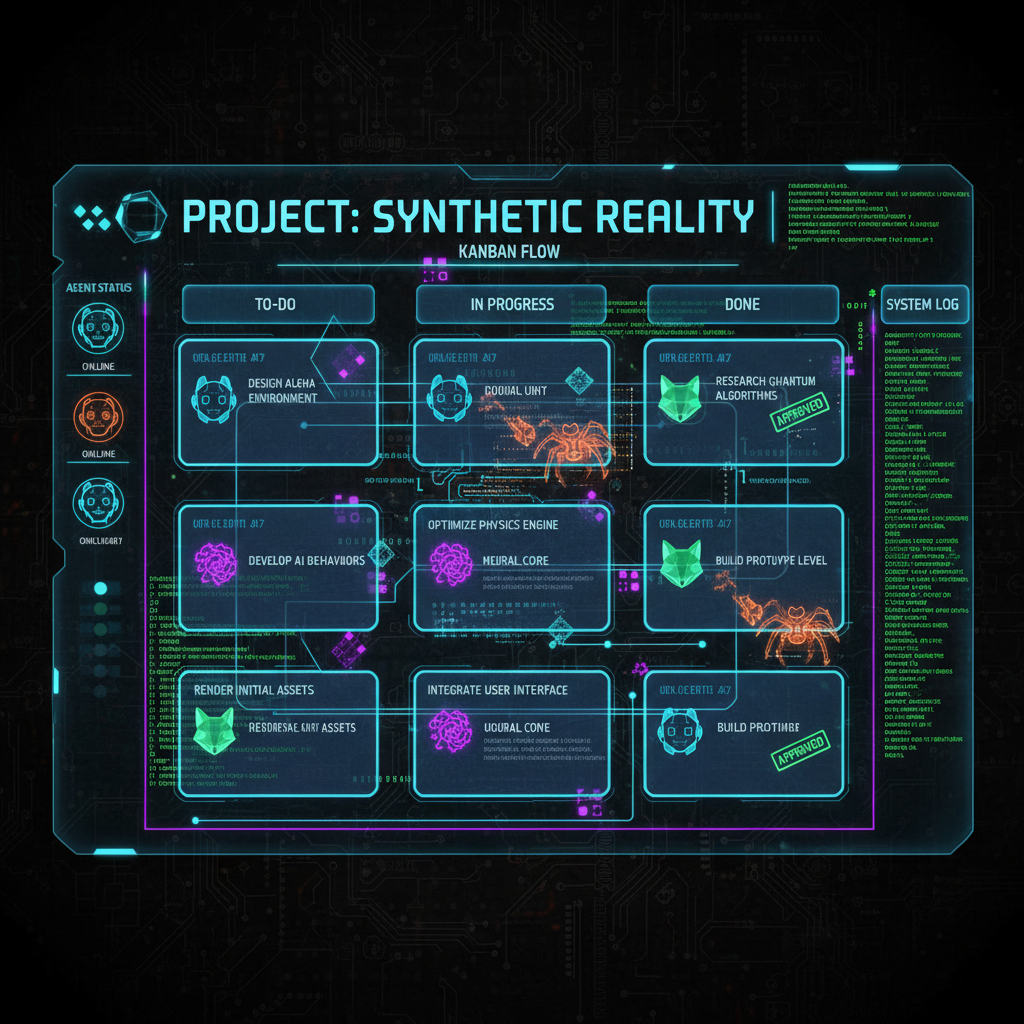
How to Use the Kanban Board for Multi-Agent Workflows in Hermes Agent
Set up the built-in kanban board to coordinate work across multiple Hermes Agent profiles — create tasks, assign agents, and enable automatic dispatching.
TLDR: Hermes Agent has a built-in kanban board for multi-agent coordination. Initialize it with
hermes kanban init, create tasks withhermes kanban create "Task title", assign them to profiles withhermes kanban assign TASK_ID profile-name, and let workers claim and complete them via their restricted toolset. For hands-off operation, enable the automatic dispatcher inconfig.yaml.
Key Takeaways
- The kanban board is a durable SQLite store — tasks survive agent restarts
- Worker agents see only their assigned tasks through a restricted toolset
- Automatic dispatching reclaims stale claims and promotes ready tasks
- Board isolation keeps work across projects separate
- Use tenants within a board for workspace-path + memory-key isolation
What Is the Kanban Board?
The kanban board is a durable multi-agent work queue built into Hermes Agent. It lives in a SQLite database and coordinates work across profiles (independent Hermes instances).
Think of it as a project board where:
- You create the tasks and assign priorities
- The dispatcher routes work to the right agent
- Worker agents pick up tasks, heartbeat progress, and mark them complete
- The board tracks everything — status, assignments, comments, and links
Unlike delegate_task (which runs subagents synchronously within a session), the kanban board is persistent and asynchronous — agents come and go, but the board holds the state.
Step 1: Initialize a Board
Every kanban workflow starts with a board:
hermes kanban initThis creates a SQLite database at ~/.hermes/kanban/ with a default board. You can have multiple boards for different projects:
hermes kanban init --name "client-work"
hermes kanban init --name "open-source"
Each board is fully isolated — tasks, assignments, and comments never leak between them.
Verify it worked:
hermes kanban listExpected output (empty board):
No tasks found. Create one with `hermes kanban create "Task title"`Step 2: Create and Manage Tasks
With a board initialized, start populating it with work items:
# Create a task
hermes kanban create "Refactor authentication module"

# Create with priority
hermes kanban create "Fix production database timeout" --priority high

# Create with a description
hermes kanban create "Update CI/CD pipeline" --description "Migrate from GitHub Actions to self-hosted runners"
Each task gets a numeric ID. Use that ID for all subsequent operations:
# List all tasks with their IDs and status
hermes kanban list

# Show full details of a specific task
hermes kanban show 1

# Add a comment
hermes kanban comment 1 "Started investigation — discovered the issue is a missing index"

# Add a comment with status hint
hermes kanban comment 1 "Blocked — waiting for DevOps to provision new instance" --status blocked
The list output shows each task with its ID, title, status (pending, active, completed, blocked, archived), assignee, and priority.
Task Lifecycle
pending → active → completed
             ↓
          blocked
             ↓
          unblocked → active
The board tracks the full lifecycle. Blocked tasks stay in place until unblocked — nothing is lost.
Step 3: Assign Work to Agents
Tasks sit on the board until someone claims them. You can assign explicitly:
hermes kanban assign 1 "backend-agent"
hermes kanban assign 2 "frontend-agent"
The assignee value is a profile name — the same ones you see in hermes profile list. This connects the kanban system to your multi-profile setup.
Worker agents interact with the board through a restricted toolset. When a worker starts with HERMES_KANBAN_BOARD set in its environment, it gets only these tools:
| Tool | Purpose |
|---|---|
kanban_show | View task details and comments |
kanban_complete | Mark a task as done |
kanban_block | Report a blocker |
kanban_heartbeat | Signal the agent is still working |
kanban_comment | Leave a note on the task |
kanban_create | Split work into sub-tasks |
kanban_link | Connect related tasks |
Workers cannot see the full board or reassign tasks — they only see what’s assigned to them.
Step 4: Enable Automatic Dispatching
Manual assignment works for small teams. For production-scale workflows, enable the automatic dispatcher. This runs inside the Hermes gateway and handles:
- Claiming — atomically assigns a pending task to an available agent
- Heartbeat monitoring — reclaims tasks from workers that stopped responding
- Promotion — moves tasks from pending to ready when dependencies are met
- Failure handling — auto-blocks a task after ~5 consecutive spawn failures
Configuration
Add this to ~/.hermes/config.yaml:
kanban:
  dispatch_in_gateway: true
  heartbeat_timeout: 300
  max_retries: 5
board_path: "~/.hermes/kanban/default.db"| Field | Default | Purpose |
|---|---|---|
dispatch_in_gateway | true | Run the dispatcher loop inside the gateway process |
heartbeat_timeout | 300 | Seconds after which a stale claim is reclaimed |
max_retries | 5 | Consecutive spawn failures before auto-blocking |
board_path | ~/.hermes/kanban/default.db | Which board the dispatcher manages |
Apply with:
hermes config set kanban.dispatch_in_gateway trueThen restart the gateway for changes to take effect:
hermes gateway restartWith dispatching active, the workflow becomes fully automatic:
- You create a task
- The dispatcher picks it up and spawns the assigned profile
- The worker claims the task, does the work, and marks it complete
- The dispatcher reclaims the worker for the next task
Board Isolation for Multi-Tenant Setups
For teams or multi-project environments, use the tenant feature:
kanban:
  tenants:
    acme-project:
      board: client-work
      workspace: ~/projects/acme
    internal-tools:
      board: default
      workspace: ~/projects/internal
Tenants provide soft namespace isolation within a board — each tenant gets its own workspace path and memory key prefix, preventing context leakage between unrelated work streams.
Step 5: Worker Agents Claim and Complete Tasks
When you spawn a worker agent with the kanban toolset, it automatically sees its assigned tasks:
# Start a worker agent (from within the board's context)
hermes --profile "backend-agent" -s "kanban-worker"
Inside the session, the worker’s agent can use the kanban toolset. These are agent-level tools, not shell commands — the agent calls them programmatically as it works through the task:
kanban_show— displays the current task’s details, including description, priority, and any comments left by the board owner or other workerskanban_heartbeat— sends a progress signal to the dispatcher, resetting the claim timeoutkanban_complete— marks the task as done and signals readiness for the next assignmentkanban_block— sets the task status to blocked with an explanationkanban_comment— appends a note to the task (useful for handoffs between workers)kanban_create— spawns sub-tasks when the agent finds the work needs decompositionkanban_link— connects this task to related tasks on the board
You’ll see these in action in the agent’s tool call output during a session. For example, when a worker agent finishes a task, it automatically calls kanban_complete, and the board updates immediately.
The kanban_heartbeat tool is critical for long-running tasks — it tells the dispatcher the agent is still alive. Without heartbeats, the dispatcher reclaims the task after heartbeat_timeout seconds.
End-to-End Workflow
Here’s the complete cycle for a two-agent kanban setup:
Terminal 1 — Board setup:
hermes kanban init
hermes kanban create "Build REST API for user management" --priority high
hermes kanban create "Build React dashboard" --priority medium
hermes kanban assign 1 "backend-agent"
hermes kanban assign 2 "frontend-agent"
Terminal 2 — Backend worker:
hermes --profile "backend-agent" -s "kanban-worker" --worktreeThe worker sees task 1, builds the API, and calls kanban_complete.
Terminal 3 — Frontend worker:
hermes --profile "frontend-agent" -s "kanban-worker" --worktreeThe worker sees task 2, builds the dashboard, and calls kanban_complete.
Back in Terminal 1 — Verify:
hermes kanban listBoth tasks should show as completed. Use hermes kanban show 1 for full details including comments left by each worker.
Advanced Features
Linking Related Tasks
When tasks depend on each other, link them:
hermes kanban link 1 2
hermes kanban link 1 3
The dispatcher won’t promote linked tasks to ready until their dependencies are complete.
Archiving Completed Work
Keep the board clean without losing history:
hermes kanban archive 1
hermes kanban archive --completed
Archived tasks are hidden from kanban list but preserved in the database. Restore with hermes kanban unarchive.
Monitoring with kanban tail
Watch board activity in real time:
hermes kanban tailShows task creations, assignments, claims, completions, and blocks as they happen — useful for debugging dispatching issues.
Statistics
Get a high-level overview:
hermes kanban statsShows counts per status, average time-to-complete, and dispatcher run history.
Verification Checklist
Run through this to confirm your board is working correctly:
# 1. Board exists and is accessible
hermes kanban list

# 2. Task creation works
hermes kanban create "Test task" && hermes kanban list | grep "Test task"

# 3. Assignment works
hermes kanban assign "$TASK_ID" "worker-profile" && hermes kanban show "$TASK_ID" | grep -i "assign"

# 4. Worker toolset is restricted (start a worker, check available tools)
hermes --profile "worker-profile" -s "kanban-worker" -q "List the tools I have available"

# 5. Completion works
hermes kanban complete "$TASK_ID" && hermes kanban show "$TASK_ID" | grep -i "complete"

# 6. Dispatcher status (if enabled)
hermes kanban log | tail -5
Common Issues
”No tasks found” but I created some
Check you’re using the correct board. If you initialized with --name, you must reference it:
hermes kanban list --board "client-work"Worker doesn’t see kanban tools
The kanban worker toolset is gated by the HERMES_KANBAN_BOARD environment variable. Worker profiles launched via hermes kanban dispatch get this automatically. For manual spawning, set it in the profile’s config:
hermes --profile worker config set env.HERMES_KANBAN_BOARD "default"Dispatcher not picking up tasks
Check the dispatcher log:
hermes kanban logCommon causes:
dispatch_in_gatewayisfalse— no dispatcher running- Heartbeat timeout too short for long tasks — increase
heartbeat_timeout - Worker profile fails to spawn 5+ times — task auto-blocks; unblock with
hermes kanban unblock TASK_ID
Next Steps
Now that your kanban board is operational, try these advanced patterns:
- Cron-fed boards — use
hermes cron createto generate tasks on a schedule, then let the dispatcher route them - Multi-tenant boards — isolate client projects with the tenant system
- Linked pipelines — chain task A → B → C with
kanban linkfor multi-stage workflows - Webhook integration — use
hermes webhook subscribeto add external triggers that create board tasks
📖 Related Reads
- NiteAgent — AI agent development, frameworks, and production patterns
- NoCode Insider — AI workflow automation with no-code tools, agents, and APIs
- ToolBrain — tool reviews, LLM comparisons, and AI workflow guides
Cross-links automatically generated from Hermes Tutorials.